Realistic AI porn image to video generator

Use an image as the visual starting point for a new clip. Sign in to add a reference you have permission to process, then describe the subject movement and camera direction you want.

18+ only. Use authorized material with adult consent. Read the rules.

From one reference image to a recorded clip

Read the sample notes
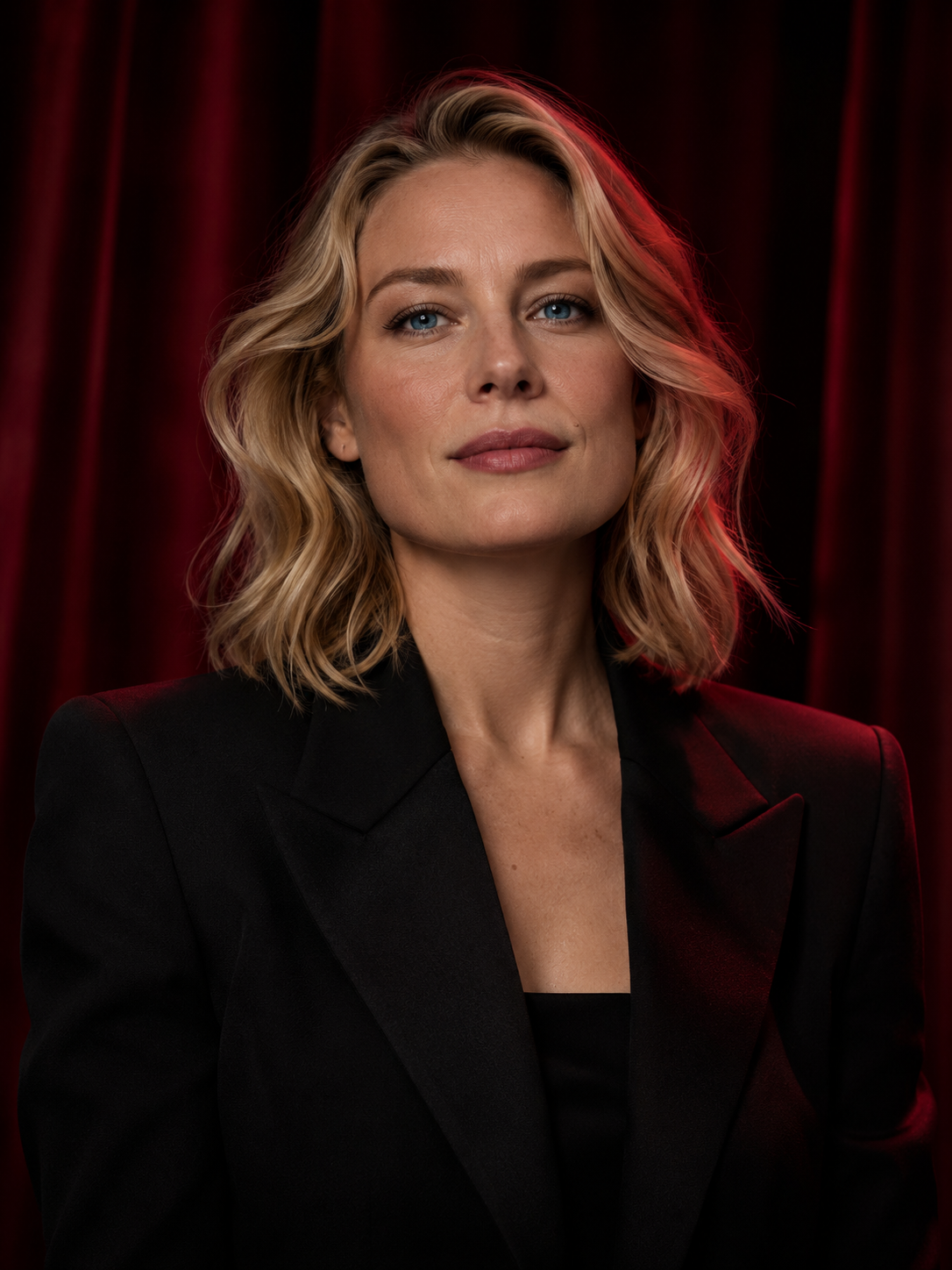
Original adult portrait reference used for the recorded video
Original input · portrait image
Recorded output · 6 seconds · 1280 × 720

Inspect the framing and visible details as the portrait moves. This is one image-to-video study; its recorded settings are separate from the options currently offered in Studio.

Model and recorded output settings

About this sample

Input reference for Blonde noir · in motion
Input referenceThis still image was used to make the video sample.
Original input
One reference image
Sample workflow
Image to video
Sample model
Wan 3.0 Spicy
Output
6 s · 1280 × 720 · MP4
Playback
30 fps · 16:9 · Silent

These settings describe this recorded sample. Select an available model and review its options in Studio.

Models, settings and example costs

Compare this workflow

These configurations come from the current catalog. Compare the specified settings and account requirements; other combinations can have different costs. Studio validates your selection before submission.

Current catalog · Retrieved . Options and credit estimates can change.

Wan 3.0 Spicy

Account + credits
25 creditsper example request

Example configuration

Duration
5s
Resolution
720p
Audio
On
Prompt enhancement
Off

Catalog configuration. Quality and content suitability have not been established by a comparative test on this site.

Source images
1–1 · up to 20 MB each
Prompt limit
1200 characters

This configuration is not marked subscription-only. An account and sufficient credits are required.

Open image to video See this model’s available parameter values

H3 Spicy

Subscription required for this example
80 creditsper example request

Example configuration

Duration
10s
Resolution
1080p

Catalog configuration. Quality and content suitability have not been established by a comparative test on this site.

Source images
1–1 · up to 20 MB each
Prompt limit
1200 characters

This configuration requires a subscription as well as sufficient credits.

Open image to video See this model’s available parameter values

MiniMax H3

Subscription required for this example
140 creditsper example request

Example configuration

Duration
10s
Resolution
1080p

Catalog configuration. Quality and content suitability have not been established by a comparative test on this site.

Source images
1–1 · up to 20 MB each
Prompt limit
1200 characters

This configuration requires a subscription as well as sufficient credits.

Open image to video See this model’s available parameter values
Compare all 9 models for this workflow

Choose image-to-video when you already have the first frame

An authorized reference supplies the starting composition. Use the written direction to describe movement, pace and camera behavior; inspect the source first so you do not spend a video request on a composition you already want to change.

Use image-to-image to revise the still before adding motion. Use text-to-video when a new scene should begin without a reference. The video can change visible details even when the motion request is subtle.

How to turn an image into video

  1. Choose an authorized reference

    Start with an image you created or are permitted to process. For a real person, obtain informed consent for the specific processing and intended use. The upload control in Studio shows the selected model's file, size and image-count limits.

  2. Describe what should move

    Use the prompt for motion: a subject action, camera movement and pace. The image already supplies much of the composition, so avoid asking for several unrelated scene changes at once.

  3. Check the output settings and estimate

    Review the selected model, available duration and resolution, and the credit estimate. After completion, inspect the clip in My creations and download the version you want to keep.

Check the result before choosing your next step

  • Compare faces, clothing, light and framing with the original reference throughout the clip.
  • Inspect edges and continuity when the subject or camera moves.
  • Treat the recorded sample’s duration and format separately from today’s selectable settings.

Completed clips are available in your account for review and download. Consult the Privacy Policy for video-result expiry and subscription exceptions. Reusing a public sample supplies a still and suggested prompt, not motion from its video file.

Read the media and retention policy. For a task or credit problem, contact support with the relevant reference.

Your information and deletion choices

We do not use your personal information, prompts, uploaded files or generated content to train or fine-tune AI models.

Use Delete in My creations to remove a creation from your library and request server cleanup. Back up anything you want to keep first. Cleanup runs in the background; the confirmation does not verify that every stored copy or retained record has been erased. Once physical deletion is complete, the deleted file cannot be restored.

Close your account or read the retention and privacy details. Content generated in breach of our Terms may be removed without a refund for that removal, subject to mandatory legal rights.

Image to video questions

Can I use any image I find online?

No. Public availability is not permission. You need the necessary media rights and the informed consent of every identifiable adult for the specific processing and intended distribution.

How many reference images can I upload?

The selected model defines the accepted image count, file formats and size limits. The upload field shows the current limits; they are not identical across models.

Will the video keep every detail of my image?

Exact preservation is not guaranteed. The model can change appearance, composition or other details while generating motion. Review the result before relying on it or sharing it.

Continue your workflow

Compare plans and credits before your next request. Read our adult eligibility and consent rules and media and data policy.

Ready to try image to video?

Choose a model and review the settings in Studio.

Create in Studio

Realistic AI Porn

Adults only · 18+

This site contains adult content. By entering, you confirm that you are at least 18 years old and of legal age to view adult content where you live.

Leave

We’ll remember your choice in this browser for 30 days.